
Why Most People Clean Their Laptop Screens Wrong
Laptop screens are not windows. They have delicate anti-reflective and anti-glare coatings that dissolve when exposed to ammonia, alcohol, or abrasive materials. Paper towels, Windex, rubbing alcohol, and even some "screen cleaning" sprays contain ingredients that strip these coatings permanently, leaving your screen with blotchy, rainbow-like patches that cost hundreds to fix (because the entire display panel needs replacing). The irony is that cleaning a laptop screen properly is one of the easiest tasks in this guide — it just requires the right materials and about 60 seconds of care.
What You'll Need
- Microfiber cloth — the only cloth safe for screens. Not paper towels, not cotton, not tissues.
- Distilled water — tap water leaves mineral streaks.
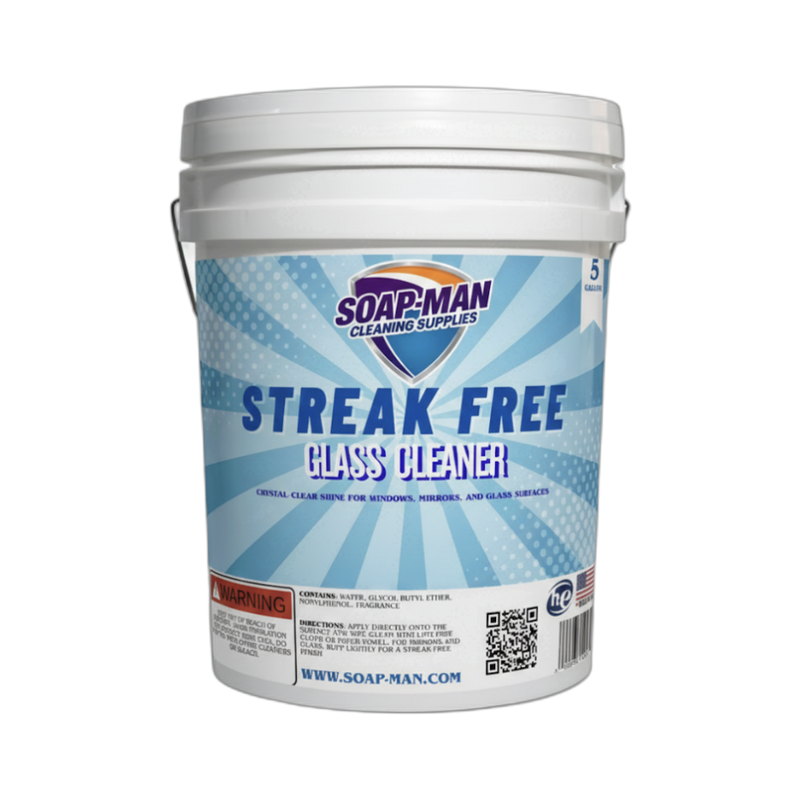
- Glass cleaner — Streak-Free Glass Cleaner is safe for screens when applied to the cloth (never directly to the screen).
- A second dry microfiber cloth — for streak-free finishing.
- Compressed air canister (optional) — for removing dust from bezels and keyboard areas before screen cleaning.
Step-by-Step: How to Clean a Laptop Screen
Step 1: Turn Off and Unplug the Laptop
Power down the laptop completely — don't just close the lid or put it to sleep. Unplug the charger. A dark screen makes dirt, fingerprints, and streaks visible so you can see what you're cleaning. It also eliminates any risk of electrical issues from moisture and prevents you from accidentally opening applications or moving files while wiping the screen. Let the screen cool for a few minutes if the laptop was running — warm screens attract more static dust while cleaning.
Step 2: Dry Dust First
Using a dry microfiber cloth, gently wipe the screen in one direction (top to bottom or left to right) to remove loose dust and particles. Don't press hard — any grit on the screen surface acts like sandpaper under pressure and can scratch the display. If there's visible debris stuck to the screen, use a short burst of compressed air from at least six inches away to dislodge it before wiping. This dry wipe removes 70% of what makes your screen look dirty. For many people, this step alone is enough.
Step 3: Dampen the Cloth (Never the Screen)
If fingerprints and smudges remain after the dry wipe, lightly dampen a clean microfiber cloth with distilled water or spray a small amount of Streak-Free Glass Cleaner onto the cloth. The cloth should be slightly damp, not wet. Never spray liquid directly onto the screen — it seeps into the bezel edges, gets behind the panel, and causes water damage to internal components. One or two sprays onto the cloth is plenty for an entire laptop screen.
Step 4: Wipe in Gentle Circles
Using the dampened cloth, wipe the screen in gentle circular motions starting from the center and working outward. Light, even pressure is key — you're not scrubbing a countertop. The microfiber material grabs oils and residue at a microscopic level, so pressure isn't needed. Pay extra attention to areas where your fingers touch the screen (touchscreen laptops) or where you've sneezed, coughed, or eaten near the computer. For stubborn spots, hold the damp cloth on the spot for five seconds to soften the residue, then wipe gently.
Step 5: Dry and Inspect
Immediately follow up with the second dry microfiber cloth, wiping the entire screen to remove any remaining moisture and prevent streaks. Tilt the screen at different angles to catch any missed spots — fingerprints are often invisible straight-on but obvious at an angle. Once the screen is clean and dry, you can power the laptop back on. The whole process takes under two minutes.
Pro Tips
- Wash your microfiber cloths regularly. A dirty microfiber cloth redistributes grime rather than removing it. Wash them in warm water without fabric softener (which coats the fibers and kills their cleaning ability) and air dry. Replace them every few months.
- Clean the keyboard before the screen. When your laptop is closed, the keyboard rests against the screen. Oil and crumbs from dirty keys transfer directly to the display. Clean the keyboard first, then the screen, for longer-lasting results.
- Keep a microfiber cloth in your laptop bag. A quick dry wipe before each work session keeps your screen clean enough that you rarely need a wet clean. Thirty seconds of prevention beats ten minutes of restoration.
Common Mistakes
- Using paper towels or tissues. Both contain wood fibers that are abrasive at the microscopic level and will scratch anti-glare coatings over time. Even "soft" tissues are too rough for screens. Microfiber only.
- Spraying cleaner directly onto the screen. Liquid runs down to the bottom bezel and seeps behind the display panel. Over time, this causes light bleed, dead pixels, and internal corrosion. Always spray the cloth, never the screen.
- Using Windex or alcohol-based cleaners. Ammonia (in Windex) and isopropyl alcohol dissolve anti-reflective and anti-glare coatings. One cleaning might not show damage, but repeated use creates permanent blotchy patches. Use screen-safe cleaners or distilled water only.
FAQ
Can I use rubbing alcohol to clean my laptop screen?
Avoid it for regular cleaning. Isopropyl alcohol damages anti-glare and anti-reflective coatings that most laptop screens have. Apple specifically warns against it for MacBook screens. Some matte screens without coatings tolerate diluted alcohol (50% or less), but distilled water with a microfiber cloth is safer and equally effective for routine cleaning.
How often should I clean my laptop screen?
A dry microfiber wipe once or twice a week is enough for most users. A damp clean once every two to four weeks addresses fingerprint buildup. If you eat near your laptop or have a touchscreen, clean more frequently. There's no such thing as cleaning a screen too often as long as you're using the right materials and technique.
What about touchscreen laptops — same method?
Same method, same materials. Touchscreen laptops collect fingerprints faster since you're constantly touching the display, so they need damp cleaning more frequently. The good news is that most touchscreen displays have hardened glass (similar to phone screens) that is slightly more durable than non-touch laptop displays, though they still have coatings that need protection from harsh chemicals.
Can I use hand sanitizer to clean fingerprints off my screen?
No. Hand sanitizer contains alcohol that damages screen coatings, plus aloe and other additives that leave a residue film. Use distilled water or a screen-safe cleaner applied to a microfiber cloth. Anything designed for hands is not designed for screens.
My screen has blotchy patches after cleaning — what happened?
You've likely stripped the anti-reflective or anti-glare coating, probably from using alcohol, Windex, or abrasive materials. Unfortunately, this damage is permanent and can only be fixed by replacing the display panel. Going forward, switch to the microfiber and distilled water method to prevent further coating loss on the remaining areas.