
Why Computers Need Regular Cleaning
Computers pull huge amounts of air through their cases to cool the CPU, GPU, and other heat-generating components. That airflow carries dust, pet hair, and lint straight into the heat sinks and fans where it compacts into felt-like mats that block airflow. A heavily dusted computer runs hotter, which makes the fans spin louder, which throttles performance to protect the CPU, which makes the computer feel slow. Eventually thermal stress kills capacitors and shortens the lifespan of expensive components. Cleaning a computer is not optional if you want it to last — it is basic maintenance, like changing the oil on a car. Laptops and desktops have different challenges but the principles are the same: get dust out, keep air moving, protect internal components from moisture and static.
What You'll Need
- Compressed air — canned, with an extension straw.
- Microfiber cloths — two, lint-free.
- Soft brush — clean paintbrush or dedicated electronics brush.
- Cotton swabs — for tight spaces and keyboards.
- Isopropyl alcohol (70%) — for stubborn grime.
- Anti-static wrist strap — for desktop interior work (optional but recommended).
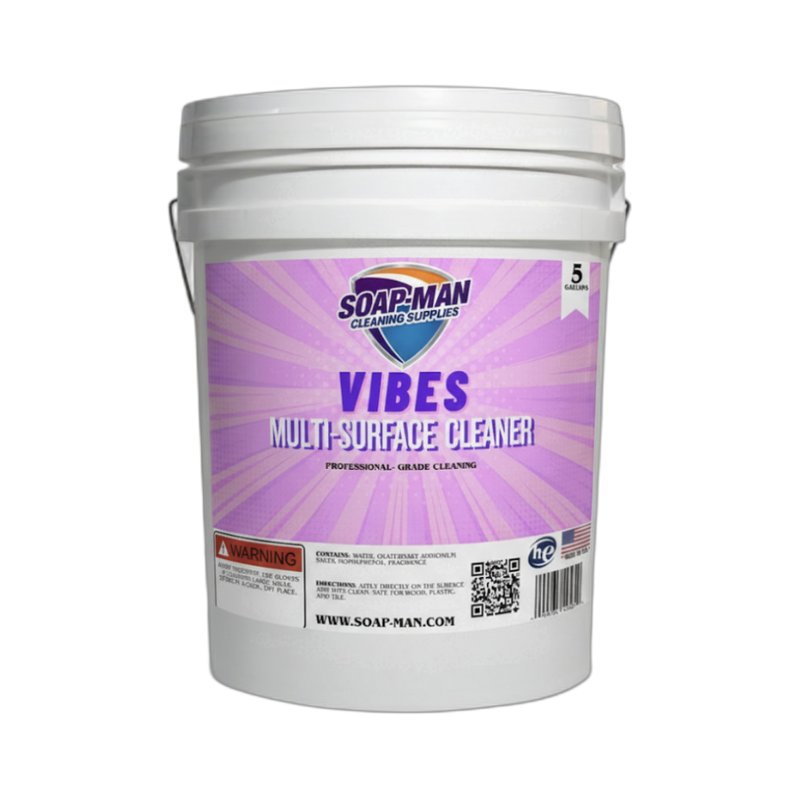
- Multi-surface cleaner — Vibes Multi-Surface Cleaner for the exterior and screen.
- Small Phillips screwdriver — for opening desktop side panels.
Step-by-Step: How to Clean a Computer
Step 1: Shut Down, Unplug, and Ground Yourself
Shut down the computer completely, not just sleep mode. Unplug the power cable and any peripherals. For laptops, remove the battery if possible. For desktops, press and hold the power button for 5 seconds to drain residual power from the capacitors. Move the computer to a well-ventilated area — outside if possible — because the dust you blow out will be substantial. Touch a metal part of the case to ground yourself before touching any internal components. Static electricity from your body can kill computer parts instantly.
Step 2: Clean the Keyboard and Exterior
Turn the keyboard upside down and gently shake out crumbs and debris. Use compressed air in short bursts between the keys to dislodge stubborn particles. For sticky or grimy keycaps, use a cotton swab dampened with 70% isopropyl alcohol to wipe each key individually — never spray liquid directly onto a keyboard. Wipe the laptop exterior or desktop case with a microfiber cloth lightly sprayed with Vibes Multi-Surface Cleaner.
Step 3: Clean the Screen
For laptops and monitors, wipe the screen with a dry microfiber cloth first to remove dust. For fingerprints and smudges, lightly dampen a second microfiber with screen-safe cleaner (never directly on the screen) and wipe in straight strokes from top to bottom. Never use ammonia-based glass cleaner on a laptop screen — it damages the anti-glare coating. Avoid pressing hard; modern laptop screens are thin and can be damaged by pressure.
Step 4: Blow Out the Vents and Interior
Laptops: Identify the air vents (usually along the sides, back, or bottom). Hold the laptop so the vents face down. Use compressed air in short 1-second bursts at each vent opening, keeping the can upright. Avoid spraying into the keyboard from above — you will push dust further in. Aim into the side and rear vents.
Desktops: Open the side panel with a Phillips screwdriver. Identify the main fans (CPU cooler, case fans, GPU fans, power supply fan). Hold each fan still with a cotton swab or your finger — letting fans spin from compressed air can damage their bearings. Blow compressed air into each fan and heat sink until the dust clears. Use a soft brush to loosen compacted dust in corners. Never touch the motherboard or components with your bare hands — oils from skin can cause corrosion.
Pro Tips
- Clean every 3 to 6 months. Desktops with pets or carpet nearby need cleaning every 3 months. Laptops used in clean environments can go 6 months. The fan noise is your indicator — when it gets loud, it is time to clean.
- Never use a household vacuum directly on computer components. Vacuums generate static electricity that can kill motherboards and RAM. Use compressed air instead. If you need suction, hold a vacuum hose 2 inches away to capture dust without direct contact.
- Replace thermal paste every few years on desktops. Compressed air cleaning handles dust but cannot restore degraded thermal paste on the CPU. Every 2 to 4 years, consider removing the CPU cooler, cleaning off the old paste, and applying fresh thermal compound to restore optimal cooling.
FAQ
My laptop is running hot and loud. Will cleaning fix it?
Usually yes. Most overheating laptops have clogged heat sinks and fans. Blowing out the vents with compressed air drops temperatures significantly and quiets the fans immediately. If temperatures stay high after cleaning, the thermal paste between the CPU and heat sink may be dried out and needs replacement — a job best done by a professional or experienced DIYer.
Can I open my laptop to clean inside?
Sometimes. Many laptops have removable bottom panels that expose the fans and heat sinks. Check your laptop manual or search "how to open [your model] for cleaning." Removing the keyboard to reach the interior is much harder and usually voids the warranty. For most users, compressed air through the external vents is the safest approach.
Is it safe to use compressed air with the fans spinning?
No. When you blow air into a fan, it can spin the fan faster than its rated speed, which damages the bearings and can burn out the motor. Always hold fans still with a finger or cotton swab before blowing compressed air into them.
My keyboard keys are sticky. How do I fix that?
Dampen a cotton swab with 70% isopropyl alcohol and wipe each sticky key. For heavily gunked keyboards on desktops, some keys can be popped off (check your specific keyboard model) for deeper cleaning. Laptop keyboards generally cannot be safely disassembled — stick to surface cleaning with a cotton swab and alcohol.