
What's Actually Living Between Your Keys
A 2018 University of Arizona study found that the average desk keyboard harbors 400 times more bacteria than a toilet seat. Every crumb, coffee splash, sneeze, and unwashed finger contributes to a colony of bacteria, dead skin cells, hair, and food debris that accumulates between and under the keys. Mechanical keyboards with raised keys collect more visible debris, while laptop keyboards trap it in the shallow spaces where it's harder to remove. Beyond hygiene, dirt under keys causes them to stick, feel mushy, or stop registering altogether. Cleaning your keyboard takes 15 minutes and should happen at least monthly — more often if you eat at your desk.
What You'll Need
- Compressed air canister — the primary tool for blasting debris from under keys.
- Isopropyl alcohol (70%) — for disinfecting key surfaces without damaging electronics.
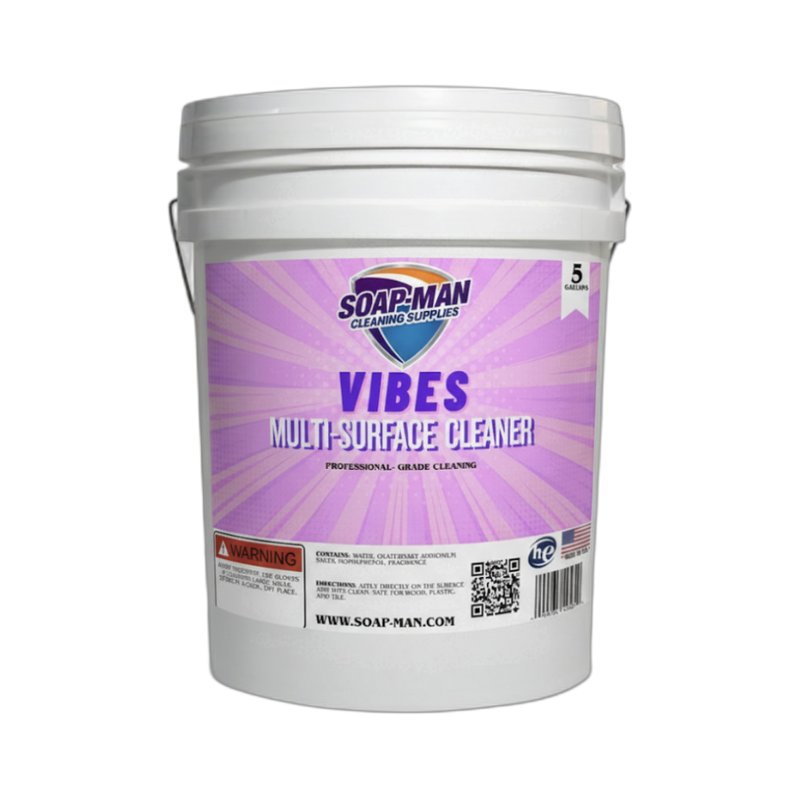
- Multi-surface cleaner — Vibes Multi-Surface Cleaner for wiping down the keyboard frame and desk area.
- Microfiber cloth
- Cotton swabs — for cleaning between individual keys.
- Keycap puller (optional) — for mechanical keyboards with removable keycaps.
- Small bowl of warm soapy water — for cleaning removed keycaps only.
- Soft-bristle brush or old toothbrush
Step-by-Step: How to Clean a Keyboard
Step 1: Disconnect and Shake Out Debris
Unplug a desktop keyboard or turn off and unplug your laptop. For wireless keyboards, remove the batteries. Turn the keyboard upside down over a trash can and tap the back firmly several times. Tilt it at different angles while tapping — you'll be surprised (and possibly disturbed) by what falls out. Crumbs, hair, dust bunnies, and miscellaneous debris that's been building up for months. This initial shake removes the loose material so compressed air can focus on the stuck-on particles.
Step 2: Blast with Compressed Air
Hold the compressed air canister at a 30-45 degree angle to the keyboard (never straight down, which pushes debris deeper). Use short bursts between key rows, working from one side of the keyboard to the other. For laptop keyboards, tilt the laptop at different angles between bursts to help dislodged particles exit. Keep the canister upright — tilting it sprays liquid propellant that can damage electronic components. If you don't have compressed air, a clean soft-bristle brush swept between key rows works as a substitute, though it's less effective in tight spaces.
Step 3: Clean the Key Surfaces
Dampen a microfiber cloth with isopropyl alcohol (70% concentration is ideal — higher concentrations evaporate too fast to disinfect, lower ones leave more moisture). Wipe each key surface, pressing down slightly to clean the tops and sides. For the areas between keys, wrap a cotton swab dampened with alcohol and run it through the gaps. The alcohol disinfects on contact and evaporates quickly without leaving residue or moisture damage. For stubborn grime on key surfaces, a dampened corner of a cloth with Vibes Multi-Surface Cleaner cuts through finger oils and residue effectively.
Step 4: Deep Clean (Mechanical Keyboards Only)
If you have a mechanical keyboard, the keycaps pop off for thorough cleaning. Use a keycap puller (or carefully lever them off with a flat tool — pull straight up, not at an angle). Take a photo of the key layout first so you know where everything goes back. Place all keycaps in a bowl of warm water with a drop of dish soap and let them soak for 30 minutes. Gently scrub each keycap with your fingers, rinse, and spread them on a towel to air dry completely (at least 2-3 hours). While the caps are off, clean the exposed switches and base plate with compressed air, cotton swabs, and alcohol.
Step 5: Reassemble and Wipe Down the Area
Once everything is completely dry, reassemble the keyboard. For mechanical keyboards, press each keycap firmly onto its switch stem until it clicks into place. Verify every key registers by testing in a text editor. Finish by wiping the desk surface around the keyboard with Vibes Multi-Surface Cleaner — a clean keyboard on a dirty desk gets re-contaminated within days.
Pro Tips
- Don't eat at your keyboard. This is the single most effective keyboard hygiene measure. If you must eat at your desk, push the keyboard aside completely. Crumbs between keys are the primary food source for bacteria and the main cause of sticky, non-responsive keys.
- Keep a small brush at your desk. A quick daily sweep between the keys with a soft brush takes 10 seconds and prevents the buildup that requires a deep clean. Prevention is always easier than restoration.
- Use a keyboard cover for dusty environments. Silicone keyboard covers keep dust and spills out while still allowing you to type. They're especially useful for laptop keyboards that are harder to deep clean. Wash the cover weekly.
Common Mistakes
- Using water or wet cloths on electronics. Water conducts electricity and causes corrosion. Always use isopropyl alcohol (which evaporates cleanly) for electronics. If any liquid gets inside the keyboard, disconnect it immediately and let it dry for 48 hours before using.
- Spraying compressed air upside down. Tilting the canister releases liquid propellant that can damage circuit boards and leave white residue. Always hold compressed air canisters upright during use.
- Prying laptop keys off for cleaning. Unlike mechanical keyboards, laptop key mechanisms (scissor or butterfly switches) are fragile and not designed for removal. Pulling laptop keys off often breaks the tiny plastic clips that hold them. Clean laptop keys in place using compressed air and alcohol-dampened cloths only.
FAQ
Can I put my keyboard in the dishwasher?
There are internet tutorials showing this, and some people have gotten away with it. But it's a terrible idea. Dishwasher water and detergent can damage circuit boards, corrode contacts, and melt keycap legends. Even if the keyboard appears to survive, trapped moisture causes slow corrosion that leads to intermittent failures weeks later. The 15-minute manual clean in this guide is safer and completely effective.
How often should I clean my keyboard?
A quick compressed air blast and key surface wipe weekly. A full deep clean (including between keys and under keycaps for mechanical keyboards) monthly. If you eat at your desk frequently or share the keyboard with others, increase to every two weeks.
Why do my keys feel sticky?
Sticky keys are usually caused by spilled liquid (soda, coffee, juice) that dried inside the key mechanism. For mechanical keyboards, remove the affected keycap, clean the switch with a cotton swab dipped in isopropyl alcohol, and work the switch up and down several times to break up the residue. For laptop keys, carefully apply alcohol to a cotton swab, work it into the edges of the sticky key, and press the key repeatedly to work the alcohol into the mechanism.
Is UV keyboard sanitizing effective?
UV-C sanitizers do kill bacteria on surfaces they directly contact, but they don't clean — they disinfect. A UV wand won't remove crumbs, oils, or debris from your keyboard. Use it as a supplemental step after physical cleaning, not a replacement. Also, UV-C doesn't penetrate between or under keys, so it only sanitizes the top surfaces.
Should I buy a new keyboard if it's really dirty?
Almost never. Even severely dirty keyboards clean up well with the methods in this guide. The only reasons to replace are: keys that no longer register after cleaning (dead switch), visible liquid damage to the circuit board, or keys with worn-off legends that you can't identify. A $30 keyboard cleaned every month outlasts a $100 keyboard that's never cleaned.