
Why Printers Need Regular Cleaning
Every sheet of paper that passes through a printer sheds a small amount of paper dust. Over hundreds of pages, that dust coats the feed rollers, the paper path, and the internal electronics. On inkjet printers, dried ink clogs the print head nozzles and causes streaky, faded prints. On laser printers, stray toner particles accumulate inside and cause ghosting, smudges, and background shading. Feed rollers glazed with paper dust lose traction, which causes the paper jams and misfeeds that most people blame on "old printers" when the actual problem is cleaning neglect. A printer cleaned every few months lasts two to three times longer than one that is never cleaned, and the print quality stays consistent instead of degrading.
What You'll Need
- Microfiber cloths — two, one for interior, one for exterior.
- Cotton swabs — for tight crevices.
- Distilled water — for the print head area on inkjets.
- Isopropyl alcohol (70%) — for rollers and non-sensitive parts.
- Compressed air — for dust removal.
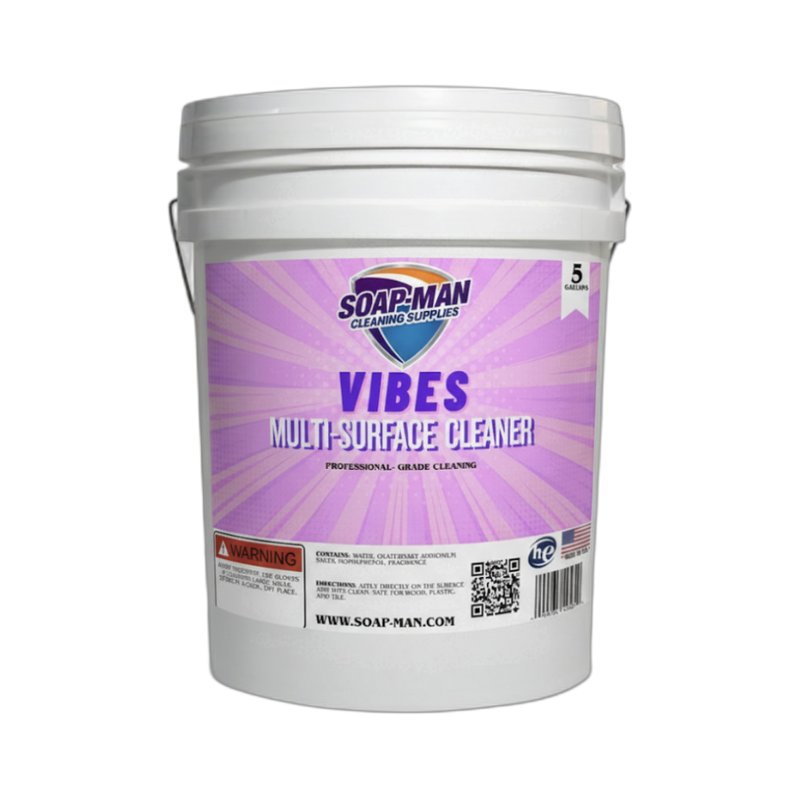
- Multi-surface cleaner — Vibes Multi-Surface Cleaner for the exterior.
- Toner cloth or anti-static cloth — for laser printer interiors (regular cloths attract static).
Step-by-Step: How to Clean a Printer
Step 1: Power Off and Unplug
Turn the printer off using the power button, then unplug it from the wall. Let it sit for 10 minutes — laser printers especially have fusers that get hot and need time to cool before you can safely reach inside. Never clean a powered printer. Electrical contact with cleaning moisture is a fire and shock risk, and the print head on inkjets can be damaged if it moves while you are inside.
Step 2: Clean the Exterior
Spray Vibes Multi-Surface Cleaner onto a microfiber cloth and wipe down the outside of the printer, including the paper tray, output tray, control panel, and the top scanner glass if your printer has one. Use a cotton swab for the crevices around the buttons and the paper tray edges where dust collects. For the scanner glass, use Streak-Free Glass Cleaner sprayed on the cloth, not the glass — liquid on the glass can seep into the scanner mechanism.
Step 3: Clean the Interior (Different for Inkjet vs Laser)
Inkjet printers: Open the cover and locate the print head area. If the print head is clogged, most modern inkjets have a "Clean Print Head" function in the printer software — run it 2 or 3 times. For stubborn clogs, lightly dampen a cotton swab with distilled water only (never alcohol on print heads) and gently wipe the area around the nozzles. Do not touch the nozzles themselves.
Laser printers: Open the cover and use compressed air in short bursts to blow out loose toner and dust. Use an anti-static cloth to wipe the interior — regular cloths pick up toner and spread it. Never vacuum a laser printer with a regular vacuum — toner particles pass through standard vacuum filters and blow into your face. Only use a toner-rated vacuum or compressed air.
Step 4: Clean the Feed Rollers and Paper Path
Locate the paper feed rollers (usually rubber cylinders where the paper enters and exits). Dampen a cotton swab or a clean cloth with isopropyl alcohol and wipe the rollers, rotating them as you clean. Paper dust glazes the rollers over time and causes them to slip — clean rubber rollers grip paper reliably. Wipe the entire paper path you can safely reach with a dry microfiber or a brush. Close the printer, plug it back in, and run a test print.
Pro Tips
- Run a cleaning cycle monthly on inkjets. Inkjet print heads clog if left idle. Running the built-in print head cleaning cycle once a month keeps the nozzles clear and prevents the deep clogs that require soaking or replacement.
- Never use tissue, paper towels, or shop rags inside a printer. They shed fibers that clog mechanisms. Always use microfiber or lint-free cloths for interior work.
- Protect your workspace when cleaning laser printers. Toner is very fine and stains skin, clothing, and surfaces. Lay down newspaper or a drop cloth, wear gloves, and avoid touching your face while cleaning.
FAQ
How often should I clean my printer?
Exterior wipe-down: weekly. Feed rollers: every 3 months or when paper starts misfeeding. Full interior clean: every 6 months for low-volume use, every 3 months for heavy use. Inkjet print head cleaning cycle: monthly, or anytime prints look streaky.
My prints have streaks or missing lines. Is that a cleaning issue?
Usually yes — on inkjets, it means clogged nozzles. Run the print head cleaning cycle 2 or 3 times. If streaks persist, the cartridges may be low or the print head may need manual cleaning with distilled water. On laser printers, streaks often mean a damaged drum or a loose toner cartridge — not something cleaning alone can fix.
Can I use rubbing alcohol on the print head?
Only on specific parts. Never on the actual nozzles — alcohol can dry out and damage them. Distilled water is safer for direct print head cleaning. Alcohol is fine on the plastic housing, the exterior, and the feed rollers.
My printer keeps jamming. Will cleaning fix it?
Clean the feed rollers first — glazed rollers are the most common jam cause. Also check for paper scraps stuck in the paper path. If jams continue after cleaning, the rollers may be worn out and need replacement. Most printers have user-replaceable roller kits.